
Get started / Customer onboarding
Connect your telematics provider
Approve the vehicle data you want to share through a Proaction invitation, using the credential method supported by your provider.
The enrollment flows are implemented and disabled by default. They require a separately configured, validated onboarding deployment before invitations can be distributed. This documentation site does not accept credentials. Completing an invitation saves verified credentials and approval while collection stays paused.
Choose the supported connection method
| Provider | Customer action | Service preparation |
|---|---|---|
| Samsara API token | Create a dedicated, restricted read token and paste it into the invitation's masked field. | Prepare the expected organization and enable the token enrollment pilot. Proaction OAuth registration is not required for this method. |
| Samsara OAuth | Continue to Samsara, sign in there and approve the registered application. | Register a Proaction-owned app and callback, confirm installation rights and configure the OAuth pilot. |
| Geotab service account | Enter the dedicated service-account username and password for the displayed approved database/server. | Prepare a fresh connection, approved device IDs and private database/server binding; enable the service-account pilot. |
| Motive OAuth | Continue to Motive, sign in there and approve the registered application. | Register the standalone app and callback; confirm direct-install or approved partner/master provisioning. |
The service chooses the method before issuing an invitation. Customers cannot change the provider or target account through the form. Motive has no generic pasted-API-key option. Geotab uses a dedicated service account, not OAuth, a personal login or a MyAdmin reseller key.
What happens after you open the invitation
- Review the provider and prepared account context. Invitations expire after ten minutes and can be used only once.
- Explicitly select odometer, fault codes, engine runtime and/or vehicle location, then confirm that you are authorized to approve this access. No options are preselected. Driver data, trips, groups and other datasets are excluded from this invitation.
- Submit a dedicated Samsara token or Geotab service-account credential through the secure form. For OAuth, continue to the provider's own login and permission screen; Proaction does not ask for your personal provider password.
- Proaction rechecks the invitation and current authority, verifies the prepared provider account and saves connection-bound encrypted credentials with a private approval receipt.
- Wait for separate activation and provider acceptance. A completed invitation does not start collection. The service must enforce your selected signals in both collection and reads before activation.
Provider permissions and your Proaction data-use selections are separate. The provider's permission screen or token may cover more than your selections; successful account verification does not prove every vehicle, field or hardware capability is available.
Samsara: create a dedicated API token
- Have an authorized administrator open Settings → API Tokens → Add an API Token in Samsara.
- Name it for Proaction Telematics and restrict tags to the agreed fleet. Choose only the Org Information, Vehicle and Vehicle Statistics read permissions required for the approved signals; confirm current permission labels with the service. Avoid driver, safety, write and unrelated permissions.
- Open the Proaction invitation, make your explicit data selections and paste the token into the masked field. Never send it by email, chat, support transcript or URL.
The server verifies the token's organization against the prepared account. This identity check does not introspect all granular token permissions. Same-account rotation uses a new paused invitation; provider-side revocation is separate from cancelling an invitation. See Samsara's token setup.
Geotab: create a dedicated service account
- Have the service prepare the approved MyGeotab database, initial Geotab server and agreed device IDs before issuing the link.
- In MyGeotab, an authorized administrator opens People → Users & Drivers → Add, selects Service Account authentication and creates a dedicated Proaction integration account with a unique password.
- Start with View only clearance and access to the agreed vehicles. Confirm the required read endpoints and account-verification metadata are accessible. Do not grant Administrator access simply to make verification pass.
- Use the invitation's fixed database and approved Geotab hostname or HTTPS origin. Enter the dedicated username and masked password; make your explicit signal selections and approve access.
The server authenticates the database/user, then verifies exactly that non-driver ServiceAccount. It does not enumerate vehicles or drivers during enrollment. Unsafe server URLs, changed target accounts, personal/driver logins and ambiguous identity checks are rejected. If your server or clearance cannot support the check, contact the service for provider review.
First completion binds the verified username. Password rotation for that same account uses a new paused invitation; changing database, server or username requires a new connection. The approval receipt retains an internal connect-session ID, but never the password or Geotab API session ID. Account type alone does not prove View-only clearance, device coverage or signal entitlement. See Geotab's service-account guide.
Authentication walkthrough
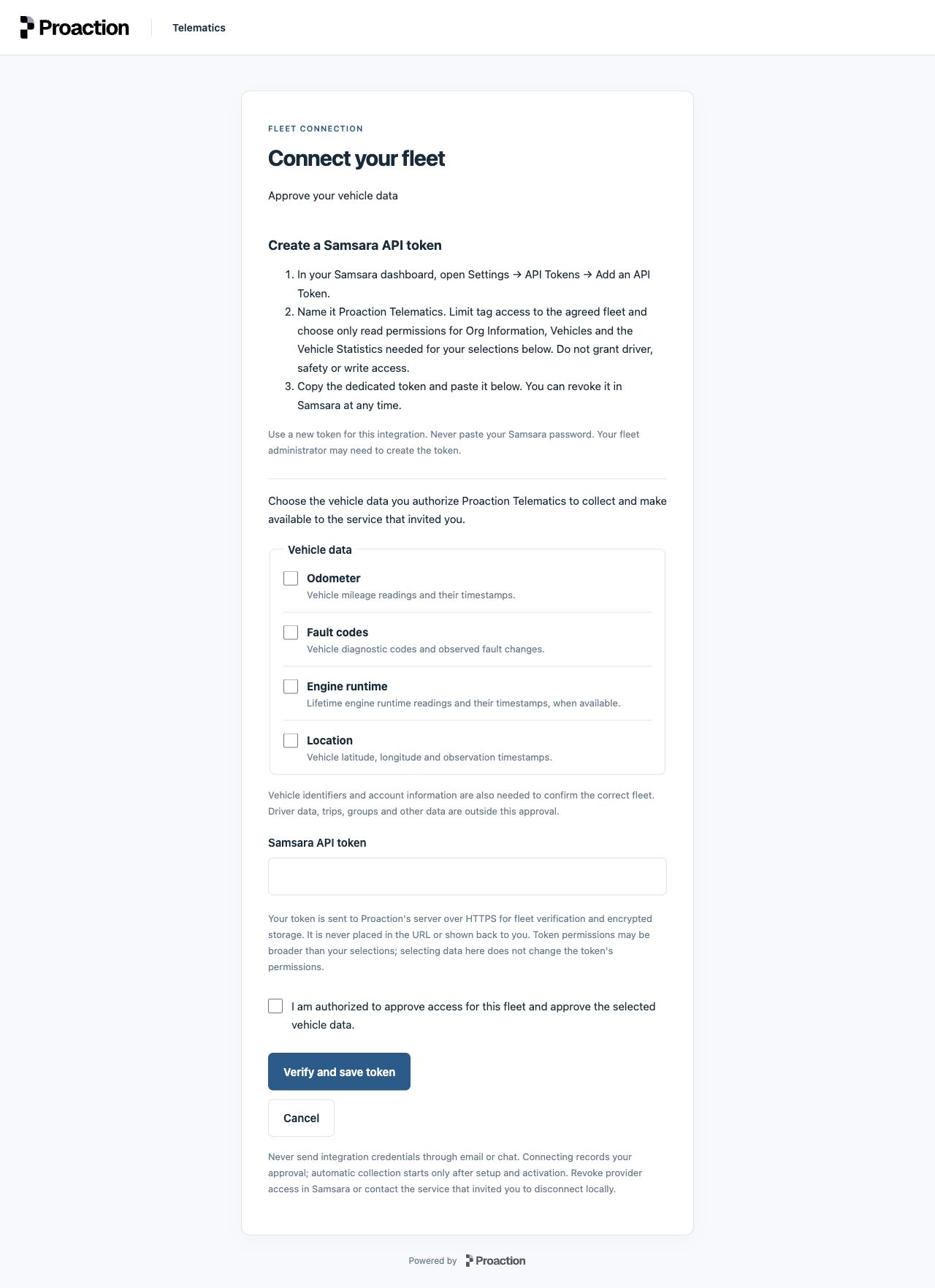
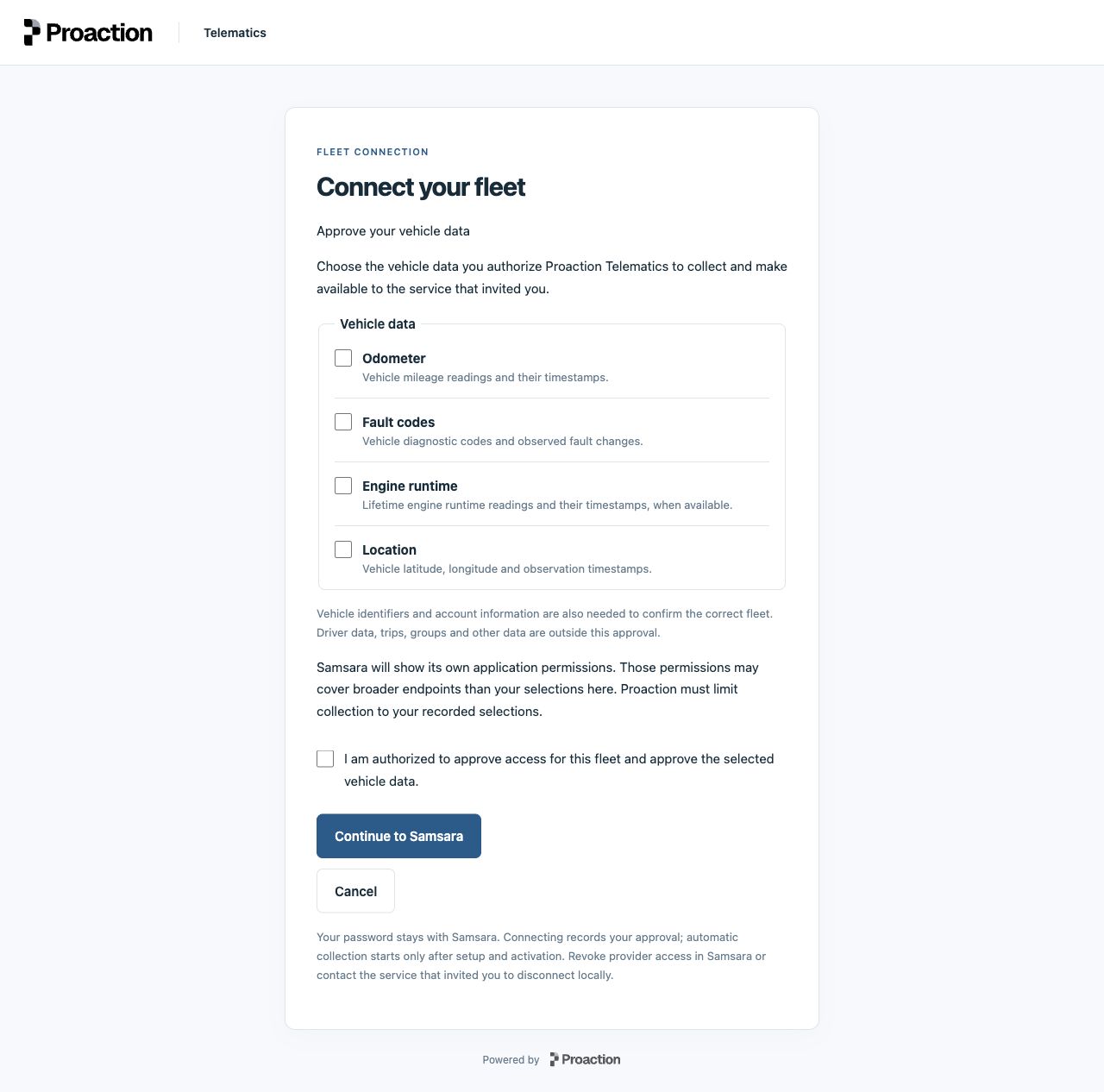
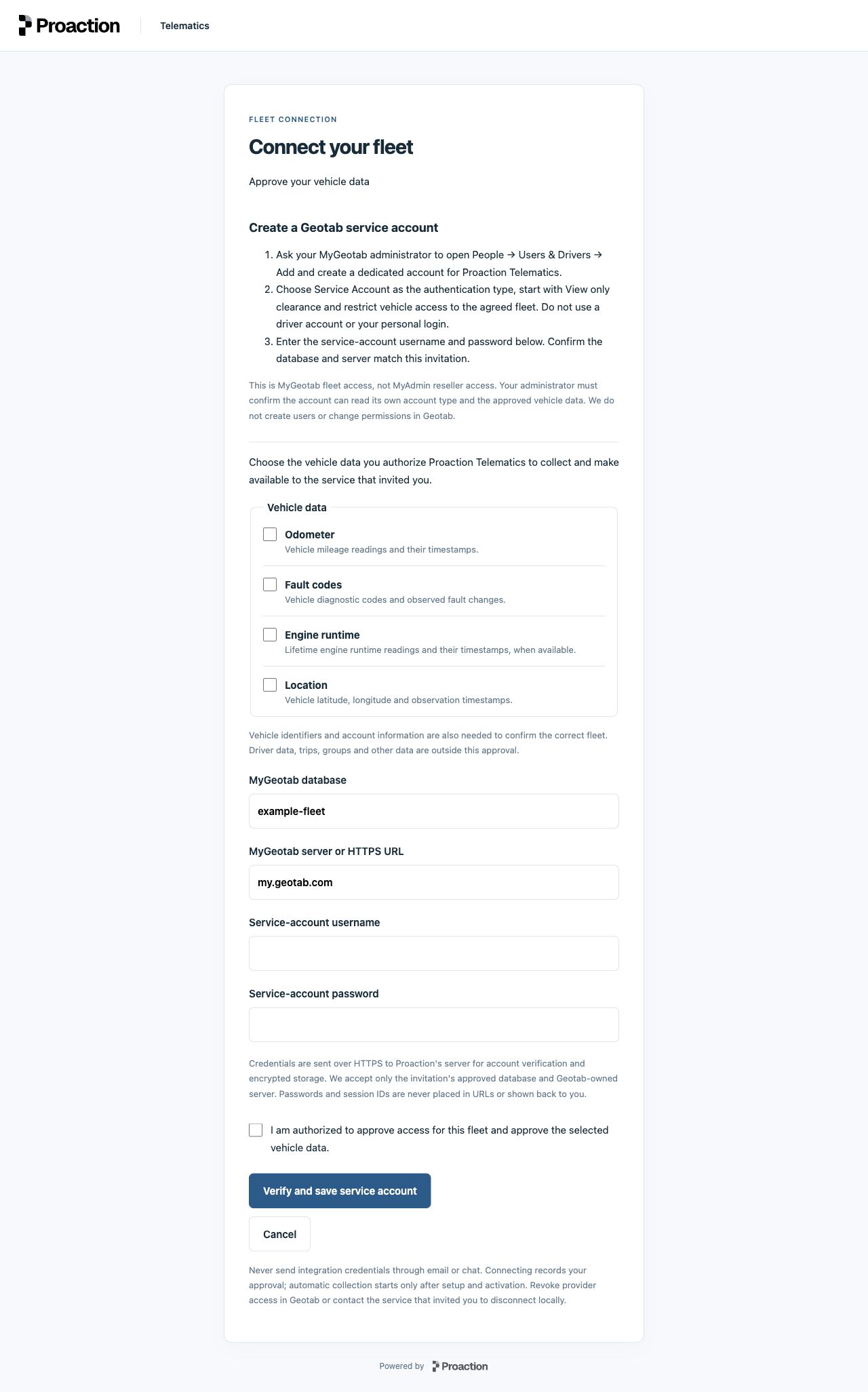
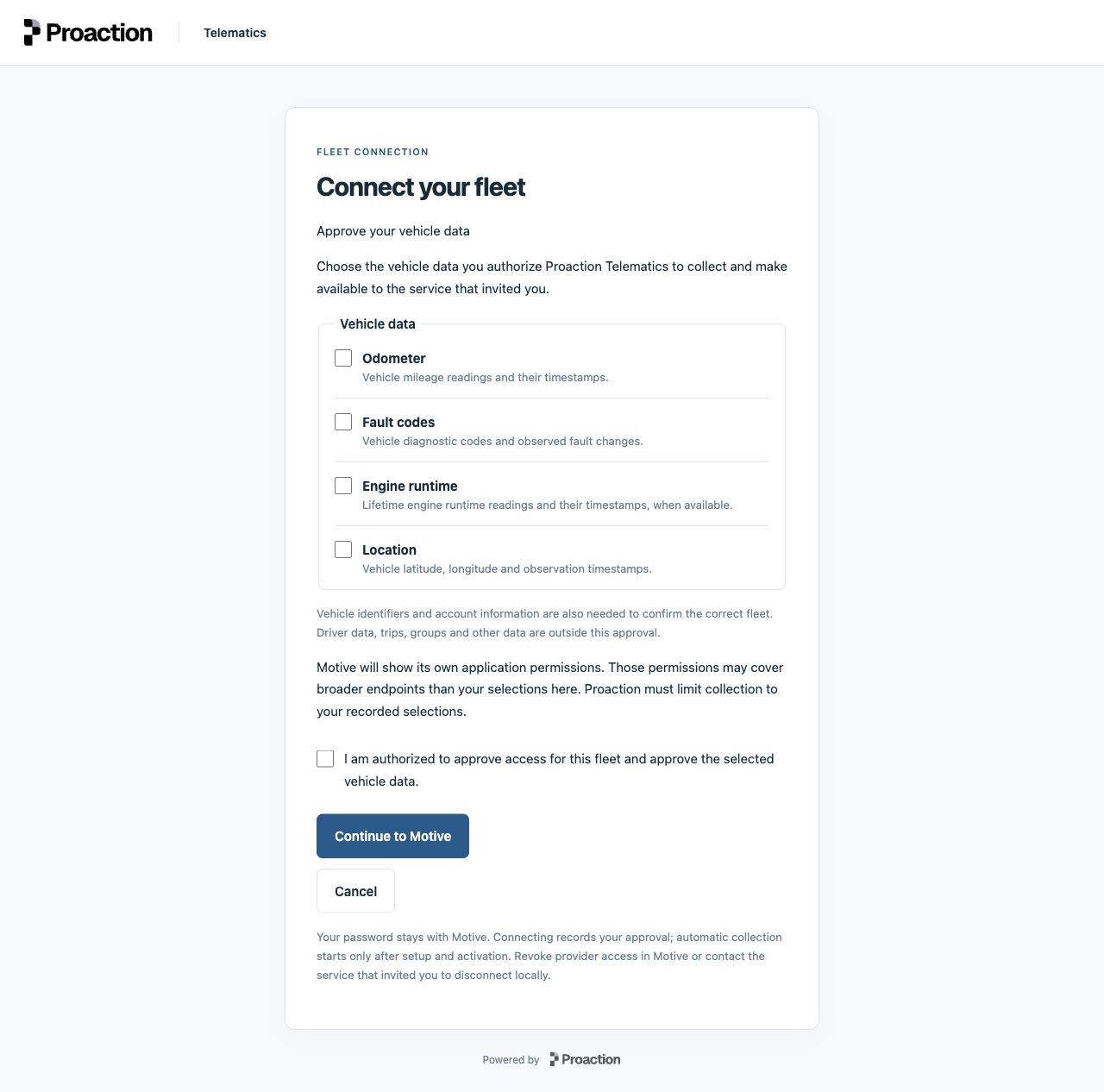
These screenshots show our actual Proaction-branded approval and credential forms, captured locally on October 12, 2026 with synthetic account details, blank credentials and no selected permissions. They illustrate the implemented UI, not a completed customer login or a live deployment. The provider-hosted OAuth login and permission screens are separate, use the provider's own branding and may vary by organization.
Jump to Samsara, Geotab or Motive. All methods end with paused enrollment; collection activation is a separate step.
Samsara: token enrollment or OAuth
Dedicated API token
- The inviting service prepares the expected Samsara organization and sends a short-lived token-method invitation.
- The fleet administrator creates a dedicated restricted token in Samsara. On the Proaction form, the customer chooses vehicle signals, pastes the token into the masked field and confirms authority.
- Verify and save token submits to Proaction. Proaction checks current invitation authority, calls Samsara to verify the expected organization and stores the token encrypted with the approval receipt.
- A successful outcome confirms enrollment. Collection remains disabled pending selected-signal enforcement and activation; the identity check alone does not prove granular token permissions.
Provider-hosted OAuth
- When a Proaction-owned Samsara app and exact callback are registered and the OAuth deployment is configured, the service issues an OAuth-method invitation.
- The customer selects signals and confirms authority on Proaction, then clicks Continue to Samsara.
- The customer signs in on Samsara's own website and reviews its application permissions. Their personal password stays with Samsara.
- Samsara returns an authorization code to Proaction's configured callback. Proaction validates the one-use browser-bound flow, exchanges the code server-side, verifies the expected organization and records encrypted credentials and approval. Collection stays paused.
Geotab: dedicated service-account enrollment
- The service prepares a fresh disabled connection with approved device IDs and binds the expected MyGeotab database and initial server. The customer administrator creates a dedicated restricted ServiceAccount in MyGeotab.
- The customer opens the Proaction invitation, checks the fixed database and approved server, selects signals and enters the dedicated username/password. They do not use a personal, driver or MyAdmin account.
- Verify and save service account submits to Proaction rather than redirecting to a Geotab OAuth page. Proaction authenticates the expected database/user and verifies exactly that non-driver ServiceAccount; no fleet or driver enumeration occurs during enrollment.
- Proaction encrypts the credential using the connection binding, pins the verified username and records approval. Same-account password rotation needs a new paused invitation; changing database, server or username needs a new connection. Clearance, device coverage and individual field entitlement still require validation before activation.
Motive: provider-hosted OAuth
- The service registers the standalone Motive application and callback, confirms the approved direct-install or partner/master model and prepares the expected company scope before issuing an invitation.
- The customer selects signals and confirms authority on Proaction, then clicks Continue to Motive.
- Motive handles the customer's login and application permission approval on its own website. Proaction does not collect the customer's personal Motive password or app client secret.
- Motive returns an authorization code to Proaction's callback. Proaction validates the browser-bound one-use flow and expected company scope. Direct enrollment stores encrypted credentials and a private approval receipt; an approved partner/master connection uses its separately provisioned shared credential after install identity verification. Collection remains paused.
A configured button is not proof that a provider application is registered or a live installation has been accepted. There is no generic Motive API-key upload in this flow.
For the integrating backend
Provision the approved paused connection and a server-side consumer key with management permission first. Use Create a connection link with no request body, deliver the returned URL to the authorized customer and poll Connection link status. Keep the consumer key and provider credentials out of frontend code and analytics.
complete confirms verified credential enrollment and a durable approval receipt. It does not mean active collection or dataset access. Expired, used or revoked links cannot be replayed; issue a new invitation after resolving the cause. Cancelling an invitation does not revoke a provider token. See Disconnect a connection for the separate service lifecycle.
Before a real pilot, the service must validate HTTPS, invitation/body log redaction, secret retention and recovery, customer/provider rights, identity, permissions and revocation. OAuth also requires registered provider apps and exact callbacks. Keep the API's deployment protection in place; publish customer invitations through the separate onboarding host. Subsequent dataset reads require the appropriate independent grants and accepted collection.
Compare provider coverage and units and availability before activation. Continue with the API Quickstart once your connection's data is separately activated.